

Buy a laptop that runs your work programs, feels comfortable, and fits your budget. Our starting point for office work is 16GB of memory and SSD storage, with the connections you need.
PC Ninja brings 25+ years of experience to helping local customers choose and care for computers. These are our buying tips—not requirements for every business or guarantees about every laptop.
Check your work programs first
Confirm that your accounting software, printer, and other work tools support the laptop you want. Some Windows computers have extra limits on apps and devices. [9] Intuit’s requirements for QuickBooks Desktop Enterprise are one example of why the exact software version matters. [10]
Considering a Mac? Check your programs first, then read our PC vs. Mac guide.

Memory: room for your open programs
RAM means random-access memory. It gives open programs room to work; it is not where files are saved. [1]
We suggest comparing 16GB for office work. 8GB may suit lighter use; consider 32GB for large editing projects. Check your programs’ needs and ask whether memory can be added later.
Storage: space for your files
An SSD (solid-state drive) holds programs and files. SSDs are generally faster and quieter than older hard drives. [3]
Our office starting point is 512GB; consider 1TB for more files. GB means gigabyte; TB means terabyte. About 1,000GB equals 1TB. See our storage comparison. Storage is not a separate backup.
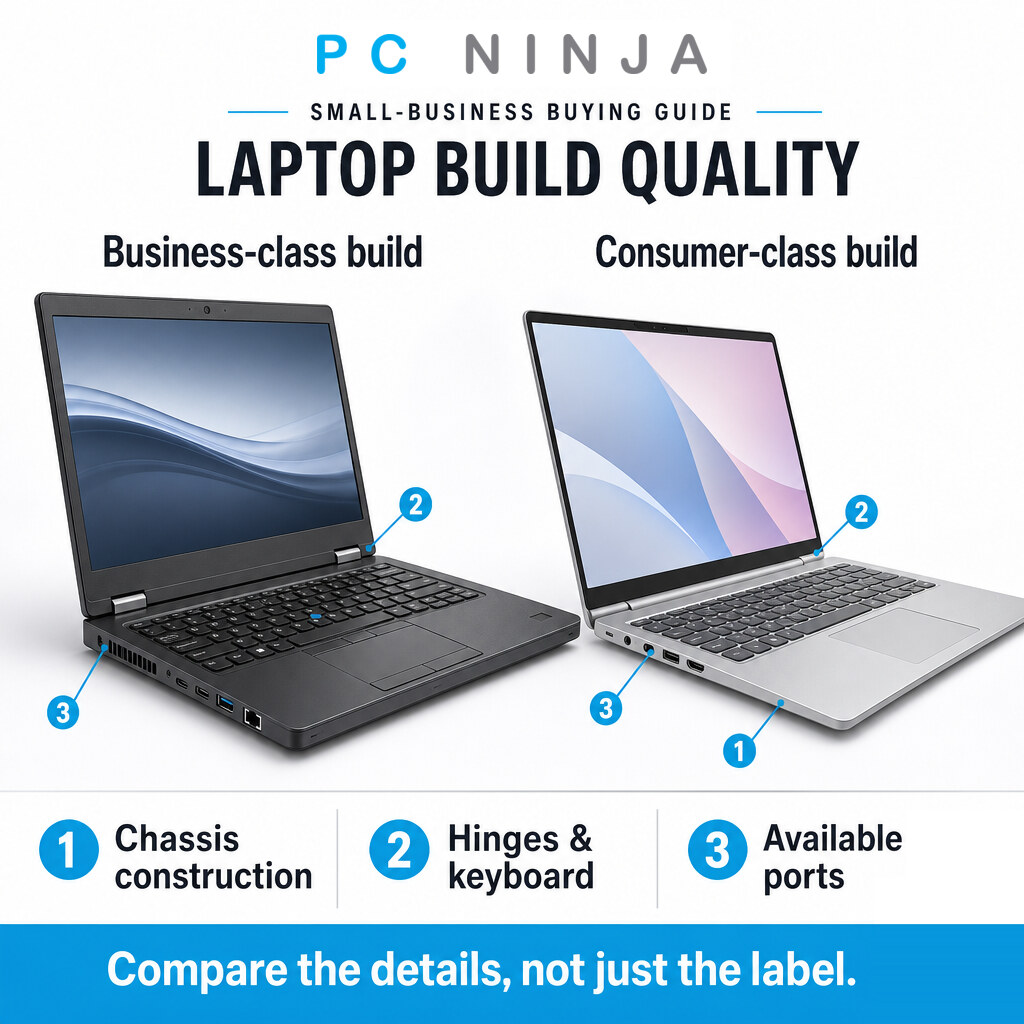
Build quality: check the actual laptop
Business ranges such as Dell Pro and Lenovo ThinkPad are worth comparing. [6] [7] A “business” label does not guarantee a better keyboard, more connections, or longer life. Check the model itself.
- Try the keyboard, touchpad, and screen hinges.
- Check weight and size if you carry it often.
- Ask about repairs, replacement parts, and adding memory or storage.
Processor: choose for your work
The CPU (central processing unit) runs your programs. [2] For a Windows laptop, compare a recent Intel Core 5, Core Ultra 5, Core i5, or AMD Ryzen 5 for everyday office work. Intel’s names vary between ranges. [5]
For demanding editing or design, compare options such as Core Ultra 7 or Ryzen 7. Do not pay extra just for email. Check reviews of the exact laptop and your software’s requirements—not just the number in the name.
Graphics: do you need extra power?
Graphics handle images and video. Built-in graphics suit lighter tasks. More demanding editing or design may need a separate graphics chip, which can add cost and use more power. [4] Check the software maker’s recommendation before paying for it.
Connections: will your devices plug in?
Check your monitor, mouse, backup drive, and other devices before buying. Useful labels to recognize:
- USB-A: the rectangular connection used by many older accessories.
- USB-C: a smaller oval connection. Charging and screen support depend on the laptop, cable, and connected device.
- HDMI: connects to a suitable monitor or TV.
- Headphone socket: useful for a wired headset.
- Ethernet: connects to a wired office network.
A USB-C socket alone does not guarantee charging or monitor support. Check the model’s specifications. [8] Also check Wi-Fi for your office network and Bluetooth if you use wireless accessories.
Battery life: check realistic tests
If you work away from a charger, we suggest looking for 8–10 hours in independent tests using tasks similar to yours. That is a buying target, not a promise. Carry a charger for long days and check reviews rather than relying only on the advertised maximum.
Screen and keyboard: try them first
Compare 14-inch models if you travel often, or 15–16-inch models for more working space. Our screen starting point is Full HD (1920x1080) or higher.
Try reading a document and typing. Check text size, brightness, reflections, and keyboard comfort. Consider an anti-glare screen for a bright workspace.
Touchscreen: only if you will use it
Consider touch for signing forms or sketching if your programs support it. For ordinary office work, a keyboard and touchpad may be all you need. Do not pay extra for a feature you will rarely use.
Warranty: know who handles repairs
Ask how long coverage lasts, what it excludes, and whether repairs require shipping the laptop away. Compare the manufacturer’s coverage with any store plan rather than assuming one is better.
If spills or drops are a concern, ask about accidental-damage cover. Dell, for example, offers it with limits and exclusions. [11] Check the terms for the plan you are actually buying.
Remove unwanted trial programs
Review installed programs before work begins. In Windows 11, use Settings → Apps → Installed apps to remove unneeded trials; some built-in apps cannot be uninstalled. [12] Ask your IT provider before removing security software or anything you do not recognize.
Plan the complete setup
Add the cost of programs, adapters, warranty options, and setup help before comparing prices. Plan file transfers, business security, and a separate backup.
PC Ninja helps businesses in Reading, Wyomissing, and Berks County choose and set up laptops. See our commercial IT services.
Need help comparing laptops or setting up one you already own? Contact PC Ninja for practical advice tailored to your team and budget.
Sources
Sources checked October 9, 2026. Numbered links above match the references below.
- [1] Microsoft. All about computer memory. Accessed October 9, 2026.
- [2] Microsoft. All about processors (CPUs). Accessed October 9, 2026.
- [3] Microsoft. All about SSD, HDD, and storage types. Accessed October 9, 2026.
- [4] Microsoft. All about graphics processing units (GPUs). Accessed October 9, 2026.
- [5] Intel. A Brief Guide to Our Latest Processor and Naming Updates. Accessed October 9, 2026.
- [6] Dell. Business Laptops. Accessed October 9, 2026.
- [7] Lenovo. Lenovo ThinkPad Laptops for Business. Accessed October 9, 2026.
- [8] Microsoft. Fix USB-C problems in Windows. Accessed October 9, 2026.
- [9] Microsoft. Windows Arm-based PCs FAQ. Accessed October 9, 2026.
- [10] Intuit. QuickBooks Desktop Enterprise technical specifications. Accessed October 9, 2026.
- [11] Dell. Support for Business PCs. Accessed October 9, 2026.
- [12] Microsoft. Uninstall or remove apps and programs in Windows. Accessed October 9, 2026.
Memory, storage, processor, screen, and battery targets are PC Ninja’s buying advice—not universal minimums, manufacturer promises, or performance guarantees. Check current requirements and the exact laptop and service plan before buying.