

A backup is a separate copy of files you can recover if the original is lost or damaged. Family photos, business records, and important documents need more than one safe place to live.
The 3-2-1 Backup Rule
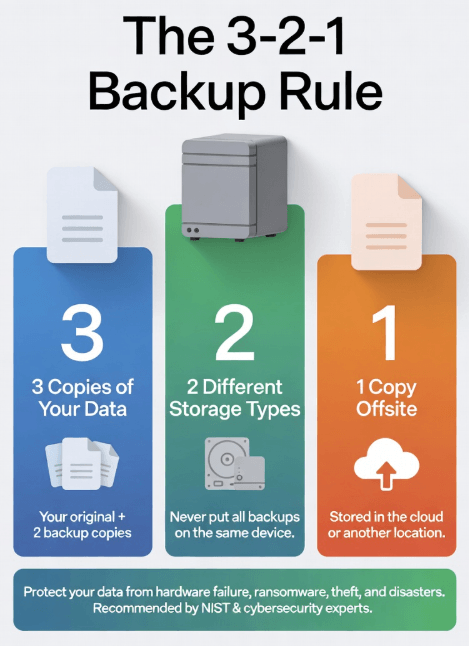
CISA / US-CERT explains the 3-2-1 rule this way: [1]
- 3 copies: your original files plus two backups.
- 2 types of storage: for example, a local drive and a cloud backup.
- 1 copy offsite: away from your home or office.
For example, keep your working files on the computer, a backup on an external drive, and another backup with a cloud service. This reduces the chance of losing every copy to the same accident. It is not a guarantee against every disaster.
What Can Go Wrong?
- A device can fail: both hard drives and SSDs can stop working.
- Files can be deleted or overwritten: an older backup may be needed.
- A device can be stolen or damaged: a copy next to it may be lost too.
- Ransomware can lock files: connected backups may be affected as well.
CISA recommends offline, protected backups and regular recovery tests. Do not rely on antivirus alone to keep your files safe. [2] See our malware prevention guide for everyday precautions.
External Drives: A Useful Local Backup
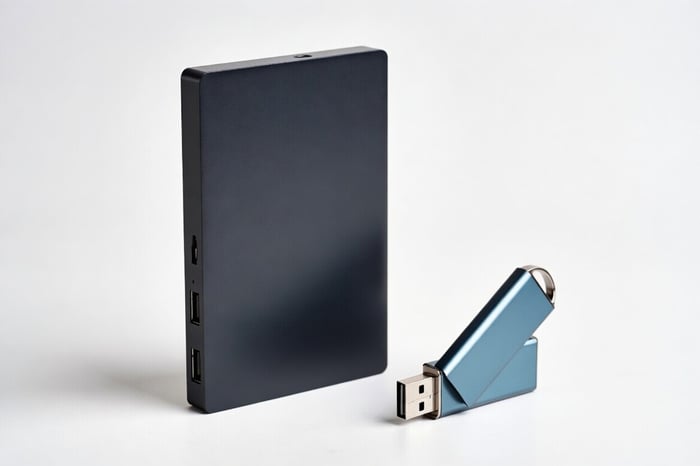
An external drive can be a sensible, affordable backup. Use backup software or a clear schedule, check that it finishes, and safely disconnect the drive when practical. Keep another copy elsewhere in case the drive is lost, damaged, or affected by malware.
A second drive inside the same computer can also hold a backup, but it shares that computer’s exposure to theft, power damage, and malware. It should not be the only extra copy.
NAS: Shared Storage for Several Devices
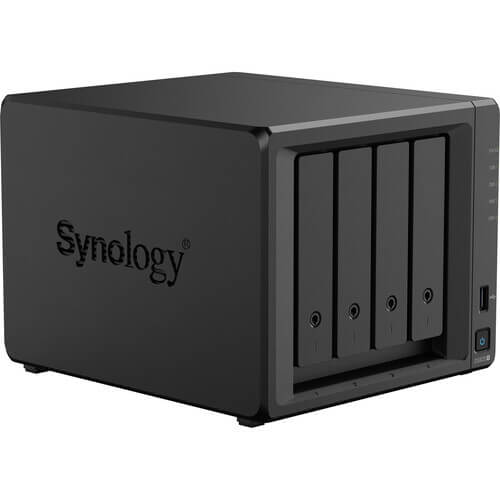
A NAS is a storage box connected to your home or office network. It can back up several computers when backup software and schedules are configured. Simply putting files on a NAS does not automatically back up every device.
Some NAS systems use RAID—a way of spreading or copying data across drives. A mirrored setup can keep working after one drive fails, but it is not a separate backup: a deletion or damaged file can be copied to both drives. Files stored only on the NAS still need independent backups. [3]
PC Ninja can help configure shared storage. No storage brand makes a business automatically compliant with privacy laws; access rules, contracts, setup, and staff practices also matter.
Cloud Backup: A Copy Away From the Building
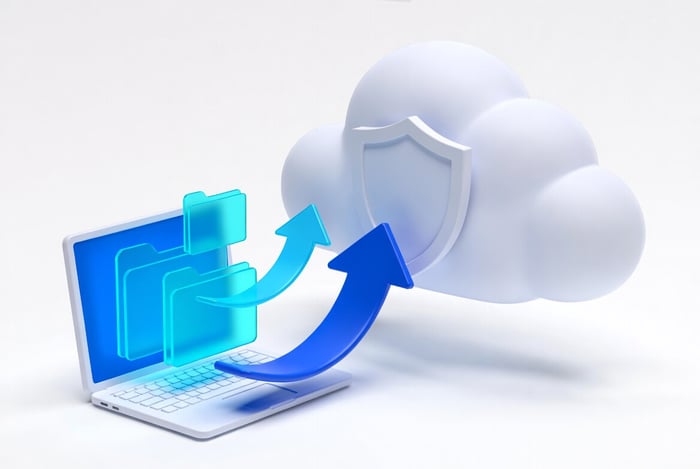
Cloud backup stores copies through an online service. Check which files are included, how long older versions are kept, how accounts are protected, and how you would recover a large amount of data. Some plans back up selected files; others can restore more of the computer.
The offsite copy does not have to be in the cloud. A properly managed drive kept at another location can also meet that part of the 3-2-1 rule. [1]
Cloud Sync Is Not the Same as an Independent Backup
Services such as OneDrive, Google Drive, and Dropbox are useful for sharing and syncing files. A deletion or unwanted change may sync to other devices. Some plans offer file history and deleted-file recovery, but the limits vary. Check those limits instead of assuming everything is protected forever.
Make Sure the Backup Actually Works
- Choose how much new work you could afford to lose. A daily automatic backup is PC Ninja’s starting recommendation for many home users; some businesses need more frequent copies.
- Check for failed jobs and make sure newly created folders are included.
- Restore a few files regularly and confirm they open.
- Keep at least one backup offline or protected from being changed by an infected computer. [2]
- Protect backup accounts with a strong password and a second sign-in check.
Need Help Choosing a Setup?
The right setup depends on your files, budget, and recovery needs—not a long list of product names. Explore PC Ninja’s backup options or ask us to review your current backups. Our maintenance checklist is another useful starting point.
Sources
Sources checked October 9, 2026. Numbered links above match these references. Buying and service recommendations are PC Ninja’s advice, not guarantees.
- [1] CISA / US-CERT. Data Backup Options. Accessed October 9, 2026.
- [2] CISA and partner agencies. #StopRansomware Guide. Accessed October 9, 2026.
- [3] Synology. What is Synology Hybrid RAID (SHR)? — RAID is not a backup solution. Accessed October 9, 2026.