Remove Unnecessary Browser Toolbars Safely | PC Ninja

Remove Unnecessary Browser Toolbars: Signs of Malware & Quick Fix Guide

Spot suspicious browser toolbars, remove them safely, and protect your business from malware.

Melvin Foo

By Melvin Foo

Back to Articles

One of the Most Visible Signs of Malware — And What to Do About It

One of the most frequent and visible signs that your small business computers have been infected with malware is the sudden appearance of unnecessary browser toolbars. These intrusive add-ons don't just clutter your screen — they slow down browsing, redirect you to risky websites, and often open the door for even more serious threats.

For small businesses in 2026, this issue is especially dangerous. With limited IT resources and increasing reliance on web-based tools, a single infected computer can quickly compromise client data, financial information, or internal systems. Studies show that small and medium businesses face a high volume of browser-based attacks, making early detection and removal critical.

Quick takeaway

An unexpected toolbar is rarely harmless. Remove it carefully, scan the computer for malware, and get professional help if it returns.

Why Unnecessary Toolbars Are a Major Red Flag

Unnecessary toolbars are a classic symptom of browser hijackers and adware. Cybercriminals bundle them with free software downloads (games, PDF readers, video players, etc.). When you install the "free" program without carefully reviewing the fine print, the toolbar slips in unnoticed.

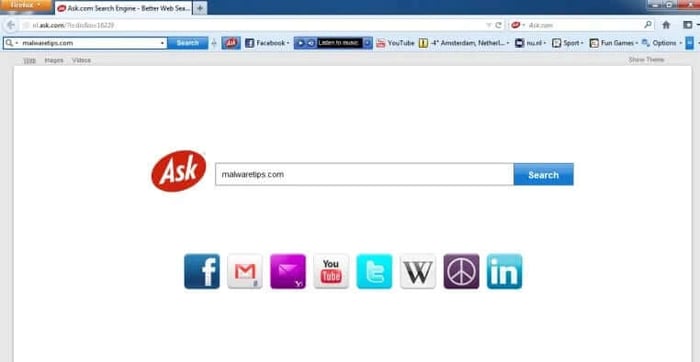
Ask search toolbar example
Unnecessary toolbar example (Source: Malwaretips.com)

Once installed, these toolbars:

  • Slow down performance: Extra code loads every time you open your browser, increasing startup time and using more RAM and CPU.
  • Hijack your homepage and search engine: They replace your preferred settings with low-quality search portals full of ads and sponsored links.
  • Track your activity: Many log browsing habits, search terms, and even login credentials to sell or exploit later.
  • Redirect clicks: Icons or search bars send you to malicious sites that can download more malware.
  • Open doors for bigger threats: They can disable security features or install additional adware, ransomware, or spyware.

Real-world impact on small businesses: A single toolbar infection might seem minor, but it can lead to data theft, downtime, or compliance issues (especially if you handle customer data). Malware remains one of the top attack types targeting SMBs, according to CISA.

How to Spot Unnecessary Toolbars on Your Computer

Open your main web browser (Chrome, Edge, Firefox, etc.) and examine the top area carefully.

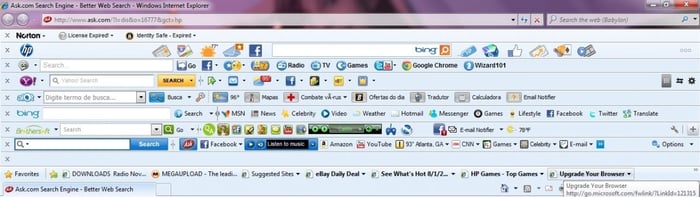
Browser toolbars example
Source: bask.com

Keep only these legitimate bars:

  • Menu bar (File, Edit, View, History, etc.)
  • Bookmarks / Favorites bar
  • Address / URL bar

Remove anything extra, such as:

  • Shopping or coupon bars
  • Gaming or video streaming toolbars
  • "Safe Search" or alternative search bars
  • Social media shortcut bars (Facebook, YouTube, etc.)
  • Any toolbar that appeared after installing new software

Toolbars often appear alongside other warning signs:

  • Changed homepage
  • Sudden increase in pop-up ads
  • Browser redirects
  • Slower overall computer performance

Common Problematic Toolbars Still Active in 2026

  • Shopping & Coupon toolbars — Promise deals but deliver ads and tracking.
  • Free Games & Streaming bars — Common with casual gaming or video sites.
  • Non-standard "Safe Search" toolbars — Avoid anything not from trusted antivirus brands like Norton or McAfee.
  • Ask Toolbar / Ask.com extensions — Long history of issues; Microsoft has flagged versions as unwanted. Modern versions often function as browser hijackers.
  • Social media shortcut bars — Seem helpful but frequently bundled with adware.
  • Legacy names like Babylon — Still referenced in hijacking reports.

Note: In 2026, many "toolbars" have evolved into browser extensions. The risks remain the same.

Step-by-Step: How to Remove Unwanted Toolbars

1. Uninstall via Windows Programs & Features

  1. 1
    Right-click the Start button → Apps & Features (or search for "Add or remove programs").
  2. 2
    Sort by installation date to spot recent additions.
  3. 3
    Look for suspicious names (anything with "toolbar," "search," "coupon," or unfamiliar brands).
  4. 4
    Select the program → Uninstall → Follow prompts.
  5. 5
    Restart your computer.

2. Remove Extensions / Toolbars Directly in Your Browser

Google Chrome:

  1. 1
    Click the three dots (⋮) → More tools → Extensions.
  2. 2
    Toggle off or click Remove on any suspicious items.
  3. 3
    Check Settings → Search engine and reset to Google (or your preference).

Microsoft Edge:

  1. 1
    Click the three dots → Extensions.
  2. 2
    Remove unwanted items.
  3. 3
    Go to Settings → Privacy, search, and services to review search settings.

Mozilla Firefox:

  1. 1
    Click the menu (three lines) → Add-ons and Themes → Extensions.
  2. 2
    Remove suspicious entries.

3. Reset Your Browser to Default Settings

If toolbars or redirects persist:

  1. 1
    In Chrome/Edge: Settings → Reset settings → "Restore settings to their original defaults."
  2. 2
    In Firefox: Help → More Troubleshooting Information → Refresh Firefox.

Warning: Resetting removes extensions and custom settings, so back up important bookmarks first.

4. Run a Full Malware Scan

Use reputable tools:

  1. 1
  2. 2
  3. 3
    Your business antivirus suite

Scan in Safe Mode for best results if infections are stubborn.

Prevention Tips for Small Businesses

  • Be cautious with free downloads — Always choose "Custom" install and uncheck extra offers.
  • Enable browser updates — Modern browsers block many hijackers automatically.
  • Use extension managers — Review and limit what runs in your browser.
  • Train your team — CISA recommends educating employees on recognizing bundled software and other cyber threats.
  • Implement managed IT support — Professional monitoring catches issues early.
  • Regular maintenance — Schedule monthly scans and browser cleanups.

When to Call Professional Small Business IT Support

Attempting manual removal is fine for simple cases, but call a technician if:

  • The toolbar returns after removal
  • You see multiple infections or system-wide slowdowns
  • You handle sensitive data (client files, financials, HIPAA/PII)
  • You're uncomfortable with advanced steps like Safe Mode or registry edits

A qualified IT provider can:

  • Perform deep forensic scans
  • Remove hidden rootkits or persistent threats
  • Restore systems cleanly
  • Implement ongoing protection (endpoint security, user training, etc.)

This proactive approach prevents small issues from becoming costly breaches.

Final Thoughts

Unnecessary browser toolbars are rarely harmless — they're usually the visible tip of a malware infection. By spotting them early, removing them properly, and following prevention best practices, you protect your small business from downtime, data loss, and security headaches.

Take action today: Audit the browsers on your work computers this week. If you find multiple toolbars or other suspicious behavior, don't wait — contact your IT support team for a full system health check.