

Important disclaimer
The information in this article is provided for general guidance only. Follow these troubleshooting steps at your own risk. PC Ninja is not responsible for data loss, software problems, system damage, or other issues that may result. Back up your QuickBooks company file and other important data before making changes, and contact a qualified professional if you are unsure about any step.
QuickBooks Desktop may show a missing-component message when it cannot create the PDF needed for an emailed invoice. Start with the safe checks below and test after each change. The XPS and Tool Hub steps follow Intuit’s repair guide; the remaining checks are PC Ninja’s practical guidance. [1]
Before You Start
- Back up the QuickBooks company file and other important data.
- Close QuickBooks before changing Windows features or running a repair.
- Check the requirements for your exact QuickBooks year and edition. Older versions may not be supported on your current Windows system.
Windows 11 Alone Does Not Guarantee Compatibility
Intuit lists Desktop 2024 for a natively installed, 64-bit Windows 11 system with an Intel or AMD processor, not ARM or emulation. Check the requirements for your own edition rather than assuming an installer will work on every Windows 11 PC. [2]
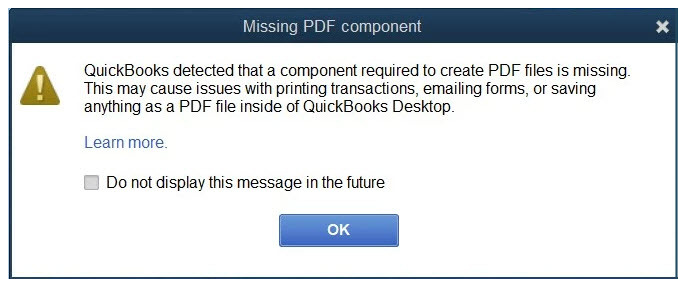
You May See Either of These Messages


The wording can vary by version. Both examples can involve PDF or printing components; the message alone does not identify the exact cause.
1. Check Microsoft XPS Document Writer
XPS Document Writer is a Windows printing component that QuickBooks uses to create PDFs. Intuit specifically tells Windows 11 users to make sure it is enabled. [1]
- 1Press Windows key + R, type optionalfeatures, and press Enter.
- 2Find Microsoft XPS Document Writer and check its box if it is not enabled.
- 3Select OK and let Windows apply the change. Restart if requested.
- 4Open QuickBooks and test a sample invoice. If it works, stop here.
If XPS is already enabled, do not randomly turn other Windows features on or off. Move to the official repair tool.
2. Run Intuit’s PDF and Print Repair Tool
- 1Close QuickBooks. Open Intuit’s official PDF and print repair instructions and download QuickBooks Tool Hub from there.
- 2Install Tool Hub, open it, and choose Program Problems.
- 3Select QuickBooks PDF & Print Repair Tool and let it finish.
- 4Reopen QuickBooks and test printing, saving as PDF, and emailing a sample invoice.
Use the download linked by Intuit, not a third-party repair site. [1]
3. Test Save as PDF
Open an invoice and try File → Save as PDF if that option is available in your version.
- If saving fails: the PDF or printing problem still needs attention. Follow Intuit’s remaining checks or get help.
- If saving works but email fails: check the email setup next. A successful test suggests PDF creation is working for that invoice, but it does not rule out every other problem.
4. If the PDF Still Will Not Save
Check QuickBooks updates using Help → Update QuickBooks Desktop where available. [3] Intuit’s guide also covers printing an XPS test, temporary-folder permissions, and testing a different form. [1]
Leave permission changes and deeper Windows repairs to a qualified technician if you are unsure. Do not grant broad access to “Everyone” or disable security protection to make the error disappear.
If a PDF is created but will not open, check your PDF viewer. Adobe Acrobat Reader’s official download page is one option. Installing Reader does not by itself repair QuickBooks’ PDF creation components.
5. If the PDF Saves but Email Fails
Check Edit → Preferences → Send Forms → My Preferences. Names and available services vary by QuickBooks version.
- Confirm the customer’s email address is correct.
- Check whether QuickBooks is configured for your desktop Outlook app or a supported Web Mail account.
- Check your email provider’s current sign-in requirements. Do not turn off account security just to make sending work.
- If using Outlook, check that its edition is supported by your QuickBooks version and that Windows uses the correct mail app. Different Outlook apps are not automatically interchangeable.
- If needed, ask your support provider whether an Office repair or a supported Web Mail setup is appropriate.
Intuit’s system requirements list email integrations for the relevant release; check your own edition’s requirements rather than assuming every email app works. [2]
6. A Temporary Way to Send the Invoice
If the invoice saves correctly, open the PDF to confirm it is complete, then attach it through your usual email app or website. Verify the recipient and do not send private customer information through an unapproved service. This is a workaround, not a repair.
What to Have Ready When You Ask for Help
- Your Windows version and QuickBooks Desktop year/edition.
- The exact error message.
- Whether printing, saving as PDF, and emailing each work.
- Whether the problem also happens in a sample company file.
- Which changes or repairs you already tried.
PC Ninja can help with remote troubleshooting, or contact Intuit for product-specific support.
Sources
Sources checked October 9, 2026. Numbered links above match these references. Buying and service recommendations are PC Ninja’s advice, not guarantees.
- [1] Intuit. Fix PDF and Print problems with QuickBooks Desktop. Accessed October 9, 2026.
- [2] Intuit. System requirements for QuickBooks Desktop 2024. Accessed October 9, 2026.
- [3] Intuit. Manage your QuickBooks Desktop: Download, update, install, or upgrade. Accessed October 9, 2026.