

A slow computer does not always need replacing. Too many open programs, a nearly full drive, or a pending restart may be the problem. Start with the simple checks below before paying for an upgrade.
Stop if the drive may be failing
If a hard drive clicks, grinds, repeatedly disappears, or stops opening files, shut the computer down and get advice about recovery. Do not run a long scan or try to copy everything from a damaged drive: further use may make recovery harder. [3]
The everyday Windows checks below follow Microsoft’s performance guidance. Hardware buying advice is PC Ninja’s recommendation. [1]
1. Too Many Programs Open
Close programs and browser tabs you are not using, then restart the computer. Save your work first. If it becomes responsive again, you may simply have had too much running at once.
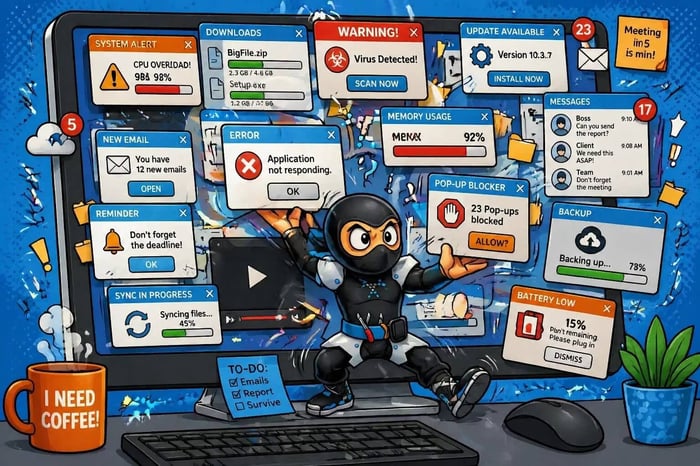
2. Too Many Apps Start With Windows
Press Ctrl + Shift + Esc to open Task Manager, then choose Startup apps. Disable nonessential apps you recognize. Leave security software and anything you do not understand alone.
3. The Storage Drive Is Nearly Full
Open Settings → System → Storage and review what is taking up space. Remove apps you no longer use and review temporary files before deleting them. Back up personal files before moving or removing them. Do not delete unfamiliar Windows folders.
4. The Computer Needs Updates or a Restart
Open Settings → Windows Update and install recommended updates. Restart when asked. Get other app updates from the app itself or its official website—not a random “driver updater” advertised online.
5. Dust or Heat Is Getting in the Way
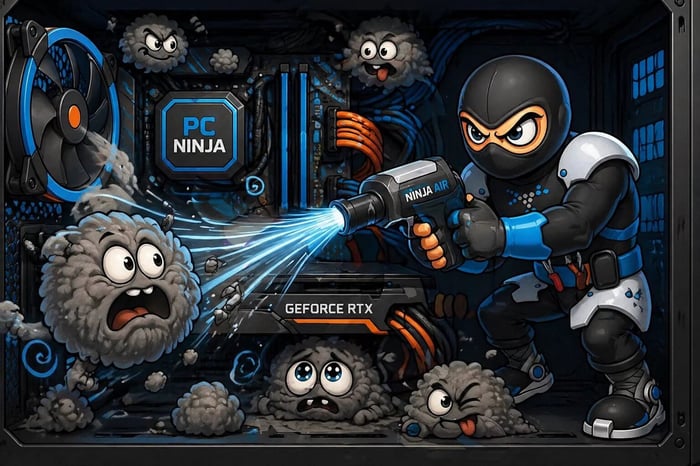
Use a laptop on a hard, flat surface and keep the vents clear. If the case is unusually hot, the fan is constantly loud, or the computer shuts off, arrange a check. Do not open a computer unless you know how to do so safely.
6. Unwanted Software May Be Running

Open your installed security app and run a scan. New pop-ups, unfamiliar browser extensions, or redirects are worth investigating. Slowness by itself does not prove there is a virus.
7. There May Not Be Enough Memory (RAM)
RAM is the working space your computer uses while apps are open. If it slows down mainly when you open several programs, more memory may help. Check whether your model can be upgraded before buying anything.
8. An Older Hard Drive May Be the Bottleneck
An SSD is a faster type of storage that can make an older computer feel more responsive. It will not fix every slowdown, and not every computer is worth upgrading. Check compatibility and back up your files first.
Let Windows manage drive maintenance through Defragment and Optimize Drives. Windows uses different maintenance for hard drives and SSDs; do not force an old-style defragmentation tool on an SSD. [2]
9. The Internet May Be Slow, Not the Computer
If websites are slow but offline programs work normally, check the connection. Try another device and move closer to the router. Our Wi-Fi troubleshooting guide explains the next steps.
10. Hardware May Need Repair or Replacement

Repeated crashes, unusual noises, or overheating need a closer look. Age alone does not tell you whether to replace a computer: compare repair cost, available upgrades, and whether it can run supported software.
When to Ask for Help
Try one change at a time so you can tell what helped. Avoid “one-click” speed boosters and registry cleaners. If you are still stuck, contact PC Ninja and describe when the slowdown happens. For a regular check, use our computer maintenance checklist.
Sources
Sources checked October 9, 2026. Numbered links above match these references. Buying and service recommendations are PC Ninja’s advice, not guarantees.
- [1] Microsoft. Tips to improve PC performance in Windows. Accessed October 9, 2026.
- [2] Microsoft. Defragment / optimize your data drives in Windows. Accessed October 9, 2026.
- [3] Seagate. When Data Loss Occurs — Seagate Recovery Services. Accessed October 9, 2026.